What the client sees
- CONTENT CALL. at the top, with their logo and a Showing menu: last 30, 60 (opens here) or 90 days.
- At a glance: results, cost per result, reach and clicks, plus three wins written from that view's numbers.
- In-store sales matched to the people who saw the ads, when the client uploads sales to Marketing Milk. Always shown on its own, never added to online results.
- Setup, maps and results: audiences, the local targeting map, a U.S. spend map, week-by-week trend, age, platform and device.
- Top ads with their real thumbnails, Google Ads when the client runs it, and a short roadmap.
What you get
- A private preview in Claude and an HTML copy in the client's
Claude outputsfolder that opens in any browser. - A short list of internal flags in the chat: budget, tracking, creative and Marketing Milk freshness. None of it goes on the page.
- Number checks before anything is built. If the audiences, trend or breakdowns don't add up to the total, it stops and fixes the pull.
- The client's logo, found and cleaned up for you (see Client logo).
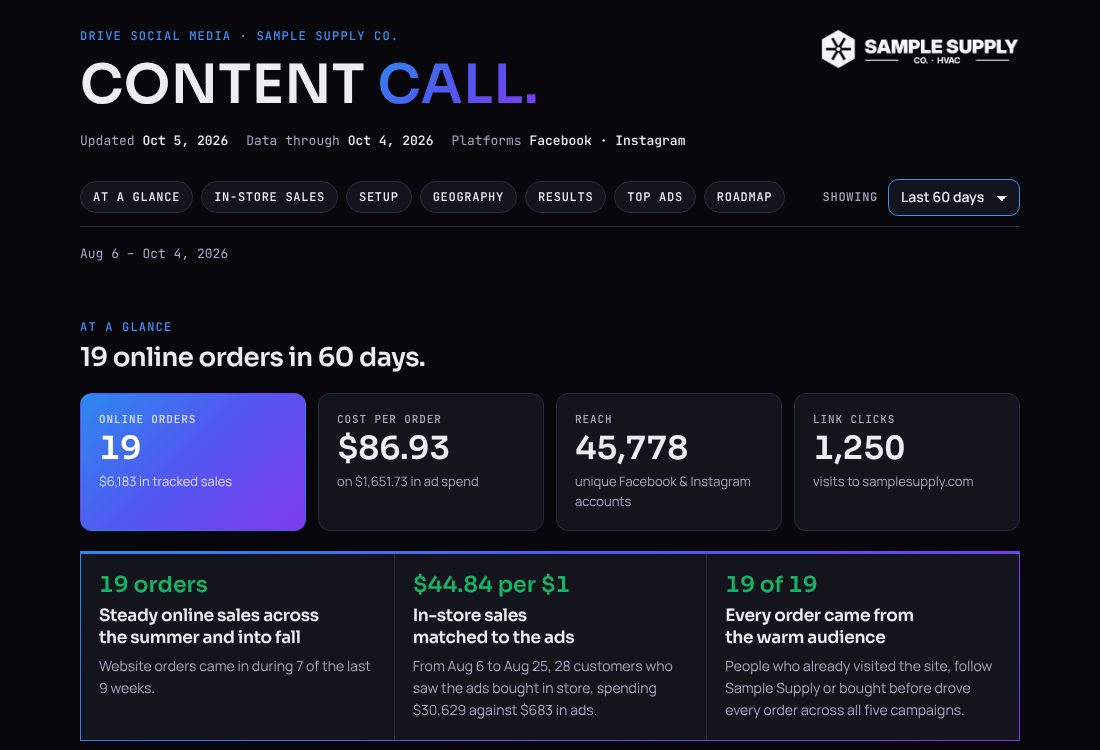
Example report for a sample client (an HVAC parts supplier with online orders and in-store sales). The numbers are real, the client is renamed, and the ad images are placeholders. Open the full example ↗
⚙ What it needs
Only Meta is required. Everything else adds a section or a step when it's there. The orange buttons open Claude with a setup prompt already typed in.
Meta's official connector. It reads the setup, results, breakdowns and ad images. Read-only.
Show the prompt
Adds the In-store sales section for clients who upload sales or call records (offline attribution). The skill asks each run whether to use it and tells you what's been uploaded. It's Drive Social's own connector, so Jeremy or #analytics-request can give you the connection details.
Show the prompt
Puts the finished page on a private link for the client. Nothing uploads until you tell Claude "upload to Netlify". The link is hidden from search engines, and later runs update the same link.
Show the prompt
Adds the Google Ads section when the client runs Google. The skill uses whichever source you have, in this order: a Google Ads connector in Claude, Marketing Milk's Google campaign totals, reading Google Ads in the browser (look only, never changes anything), or a CSV export you give it. Without any of these, the report is Meta-only and it tells you so.
Show the prompt
Lets the skill search Drive for the client's logo when it isn't in the client folder.
Show the prompt
Connect the folder that holds your client folders when you start the task in Cowork. The report, its data and the logo files are saved
in <Client>/Claude outputs/. Without a connected folder you still get the report in the chat.
⇩ Install once, ~2 minutes
⬇ content-call-skill.zipVersion 1.1. The zip holds the skill plus the scripts that build the page, so upload it as-is. Don't unzip it.
- In the Claude desktop app, open Settings and make sure Code execution and file creation is on.
- Go to Customize → Skills, click +, choose Create skill, then Upload a skill.
- Pick
content-call-skill.zip. content-call appears in your skills list. Make sure it's switched on.
Updating from an earlier version? Upload the new zip the same way; it replaces the old one. Steps from Claude's skills help ↗.
▶ How to run it
- Start a Cowork task with your client folder connected (in the client's Project if it has one) and type
/content-callplus the client's name. - Answer the questions. One card, up to four questions, each with a recommended answer: Meta ad account · Google Ads (it says which account it found, or asks) · Marketing Milk (it shows what sales and call records are uploaded) · Netlify, "Put this report on Netlify for the client to view?".
- It pulls the last 30, 60 and 90 days, finds the logo, writes the page and runs the number checks. Expect 10–15 minutes.
- Review it. Open the preview in Claude, or the HTML file in the client's
Claude outputsfolder. Check the numbers against Ads Manager and read the wins. Ask for any changes in the same chat, and it rebuilds. - When it's right, type
upload to Netlify. It creates (or updates) the client's private link, checks the page is live, and gives you the URL. - Send the link to the client, or open it on screen during the content call. Next time, run it again and upload to the same link.
Nothing goes to the client automatically. The upload only happens after you've reviewed the page and asked for it, and the skill never emails anyone.
◎ Client logo
The logo sits top right, so it needs a transparent version that works on both the dark and light page.
- Where it looks, in order: the client folder (the
brand/folder from Brand Standards first), then Google Drive, then the client's website. - No transparent version? It makes one from a logo on any solid background, plus a light-on-dark copy, and checks both on dark, light and blue before using them.
- Brand rules win. If the brand standards say "black and white only" or "never recolor", it follows that.
- Can't get a clean one (photo or gradient background)? The page shows the client's name instead, and it tells you a clean logo is needed. Copies of good logos are saved to the client folder for next time.
i Good to know
- 60 days by default. Content calls are the 60-day review, so the page opens on the last 60 days. The client can switch to 30 or 90 days, and
#30or#90on the end of the link opens that view. - In-store sales stay separate. They're never added to Meta or Google results, and the page calls them the client's own sales records. Marketing Milk isn't named on the page.
- Private link. Anyone with the link can open it, but search engines can't find it. Share it only with the client.
- Client-safe copy. Wins first, plain language, no time-on-site or Key Events columns. Health clients get extra care: no outcome claims and neutral audience names.
- Doesn't touch the creative pipeline. It reads the client's brand folder for the logo and writes nothing back, so Brand Standards, Creative Strategy and the Meta Ad Generator work as before.
↻ What's new in v1.1 Oct 6, 2026
- Built for the content call. The page is headed CONTENT CALL. and opens on the last 60 days, with 30 and 90 in the menu.
- Team-ready. Runs on Mac or Windows, with everything needed bundled in the zip. No scheduling or automatic emails: you review, then say "upload to Netlify".
- Logo capture built in. Finds the client's logo and makes clean light and dark versions on its own.